Introduction
This guide provides a step-by-step walkthrough for setting up and utilizing the AI Tokens and WP Plugin Dashboard, ensuring an efficient and seamless experience.
Step 1: Registration
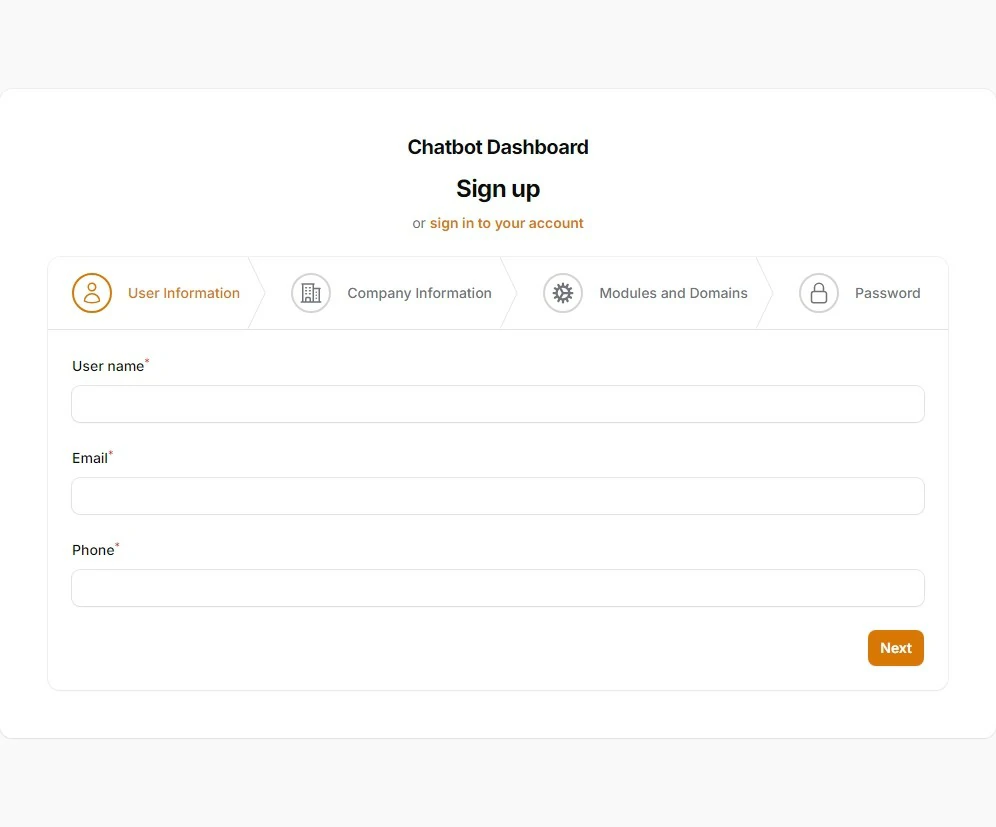
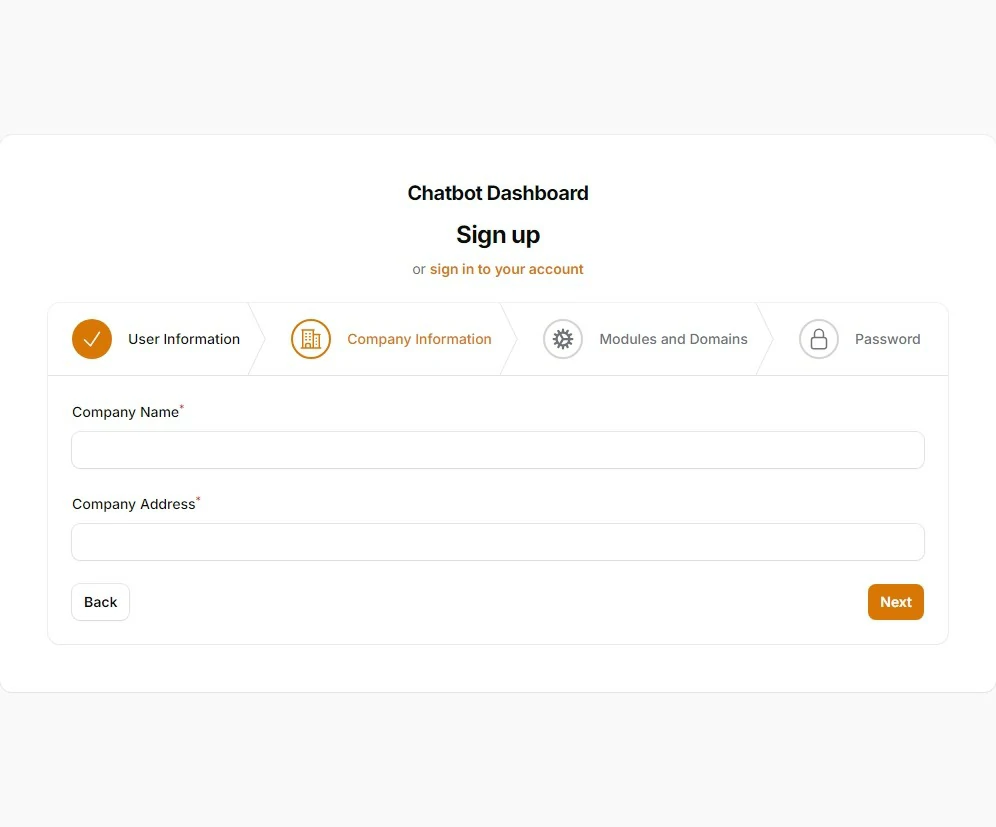
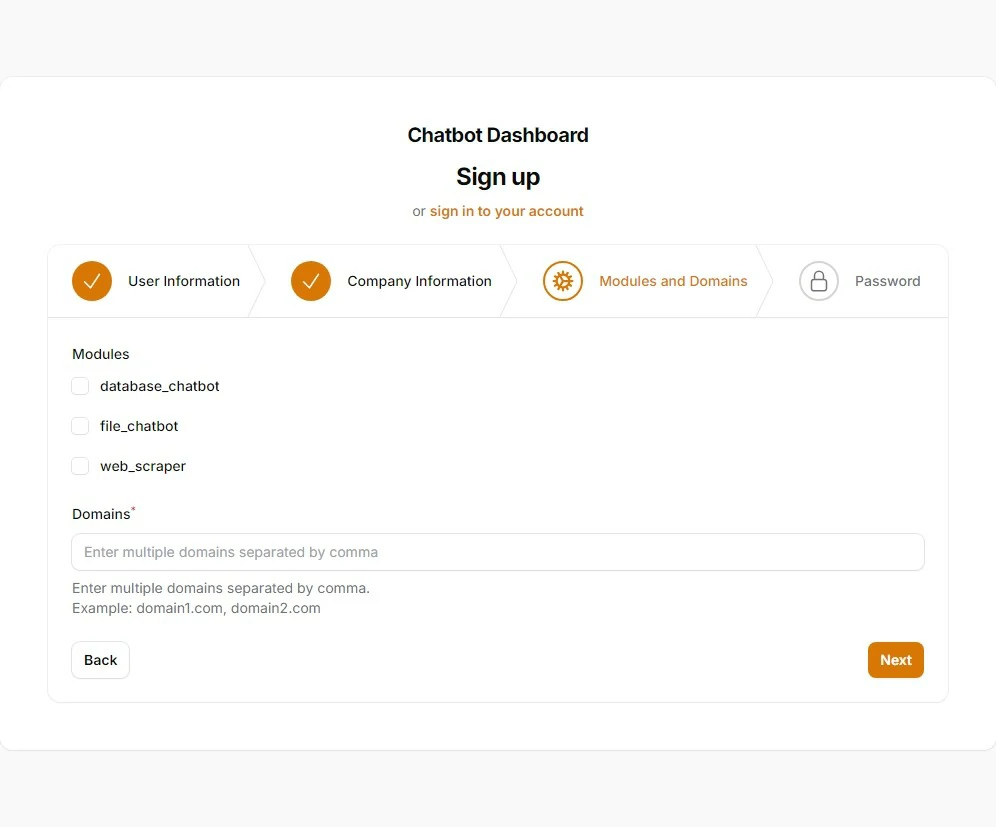
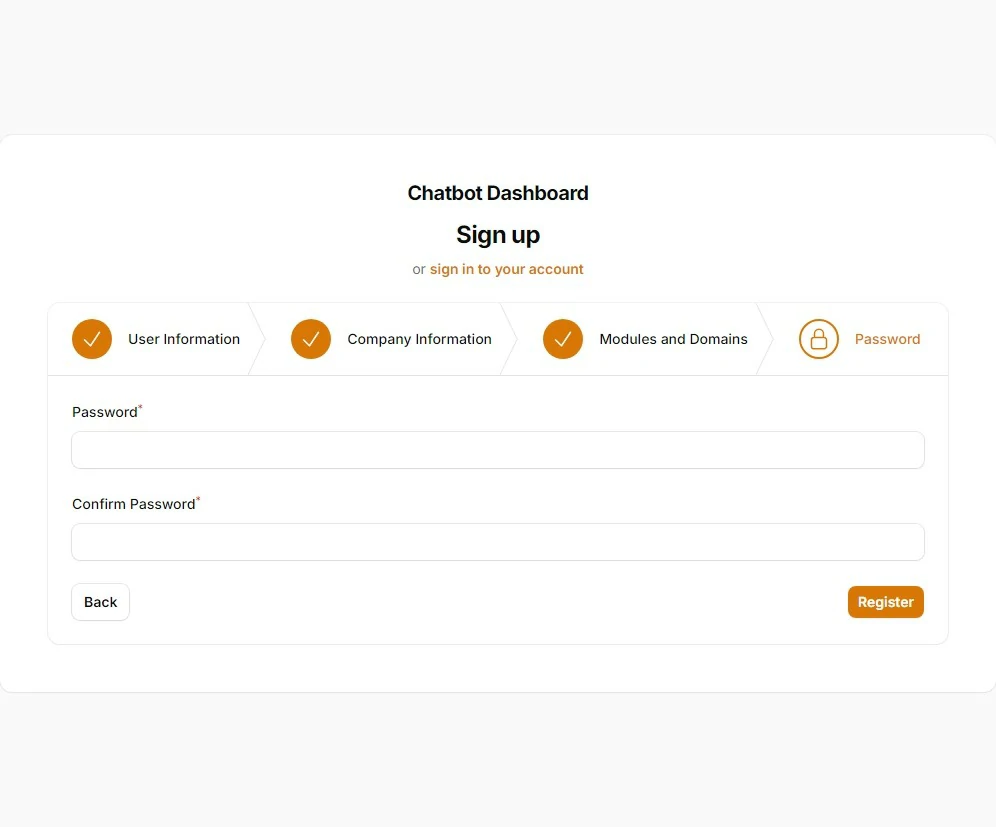
Begin by signing up for a free trial to access the platform’s features.
Step 2: Dashboard Overview
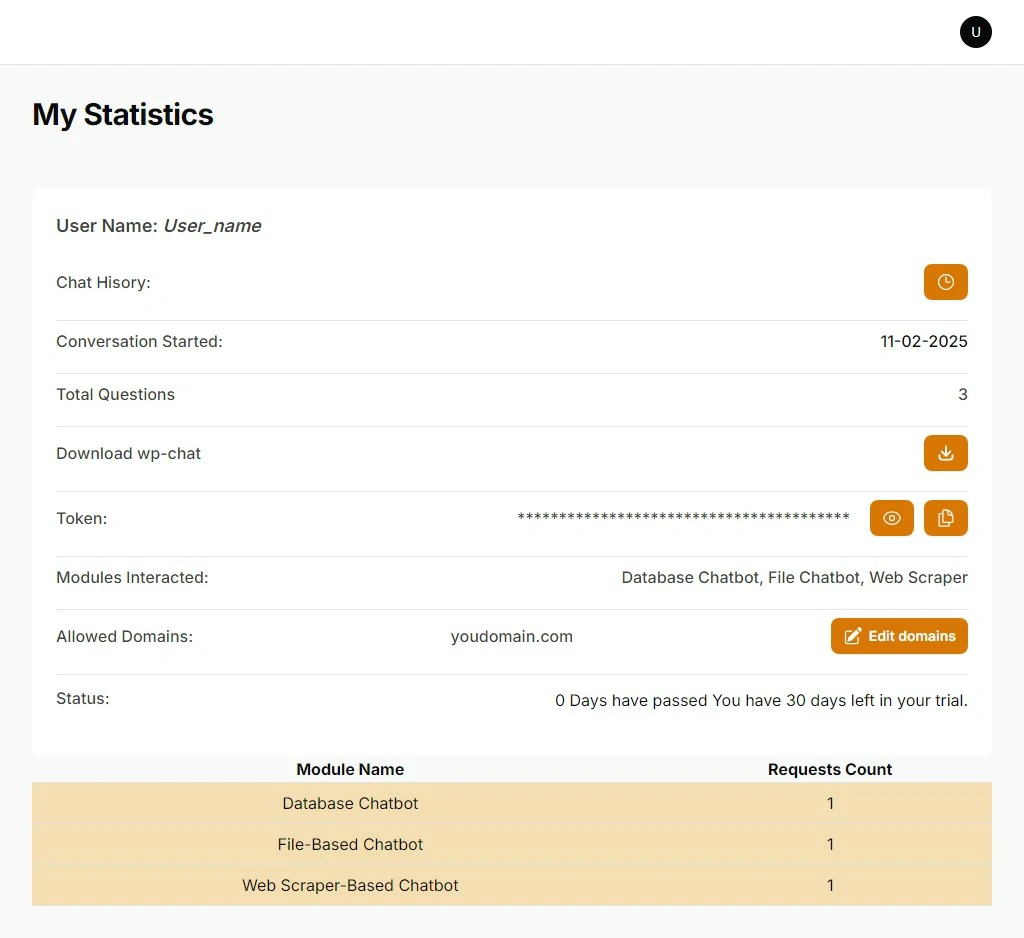
The dashboard serves as the control center where users can monitor usage, manage domains, download the plugin, and view module statistics, including question analytics.
Step 3: Plugin Download
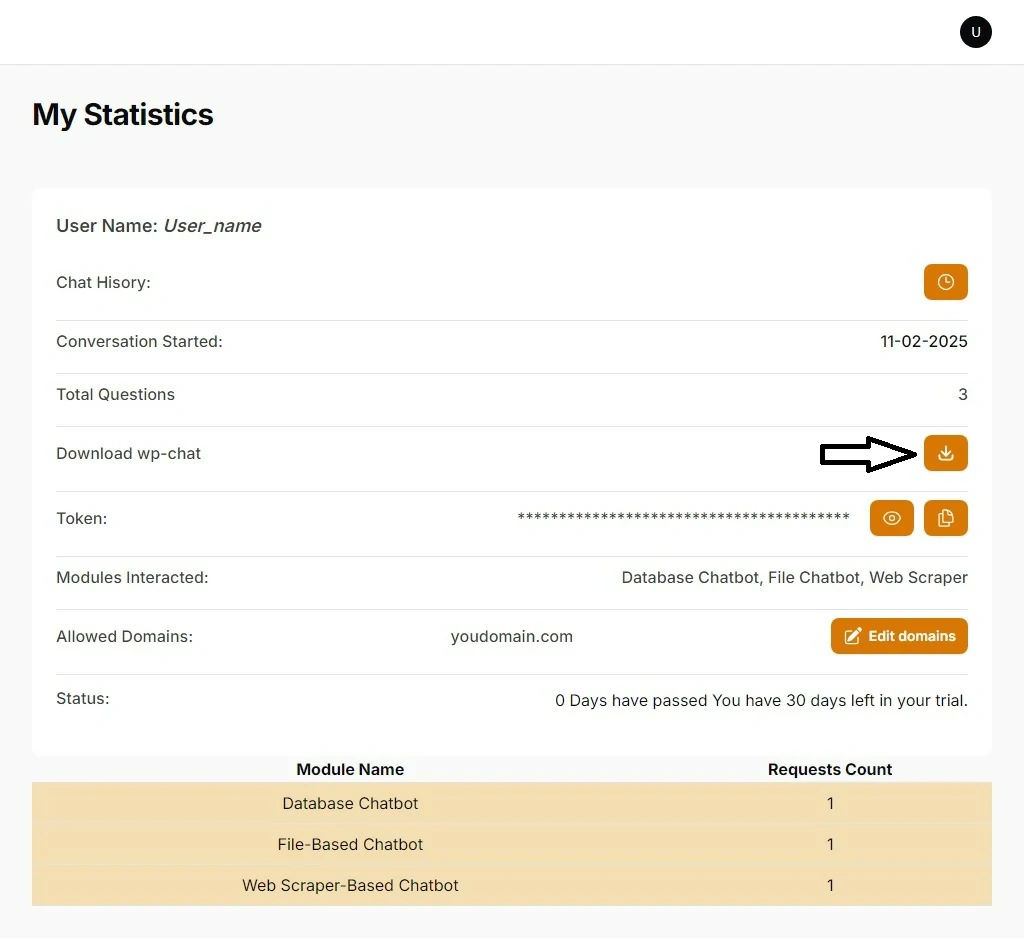
Download the plugin directly from the dashboard to integrate it into your website.
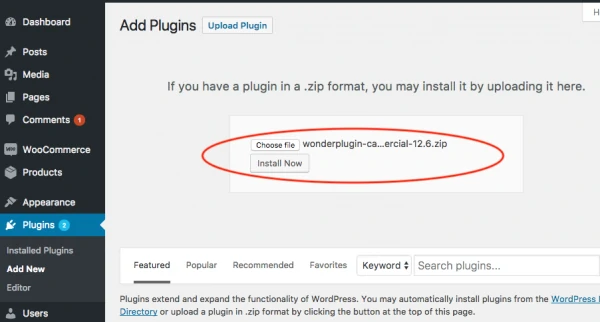
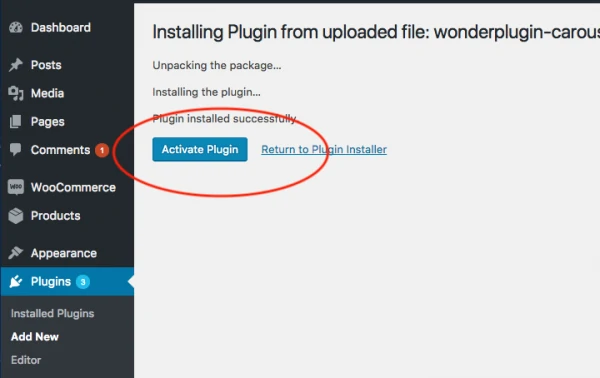
Step 4: Installation
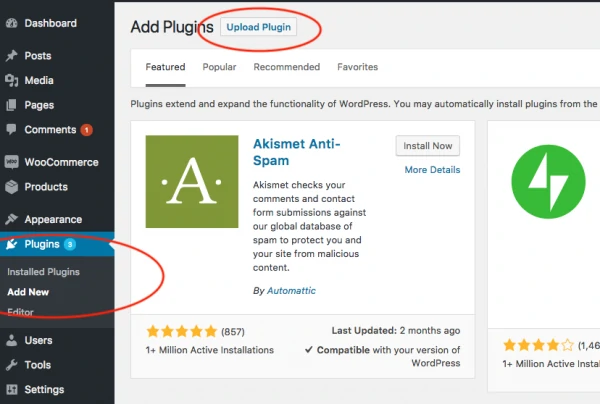
To install the plugin, access your website’s administration panel. The default login URL is
/wp-admin unless modified by the administrator. If you encounter difficulties,
contact the site administrator.
Step 5: Configuration
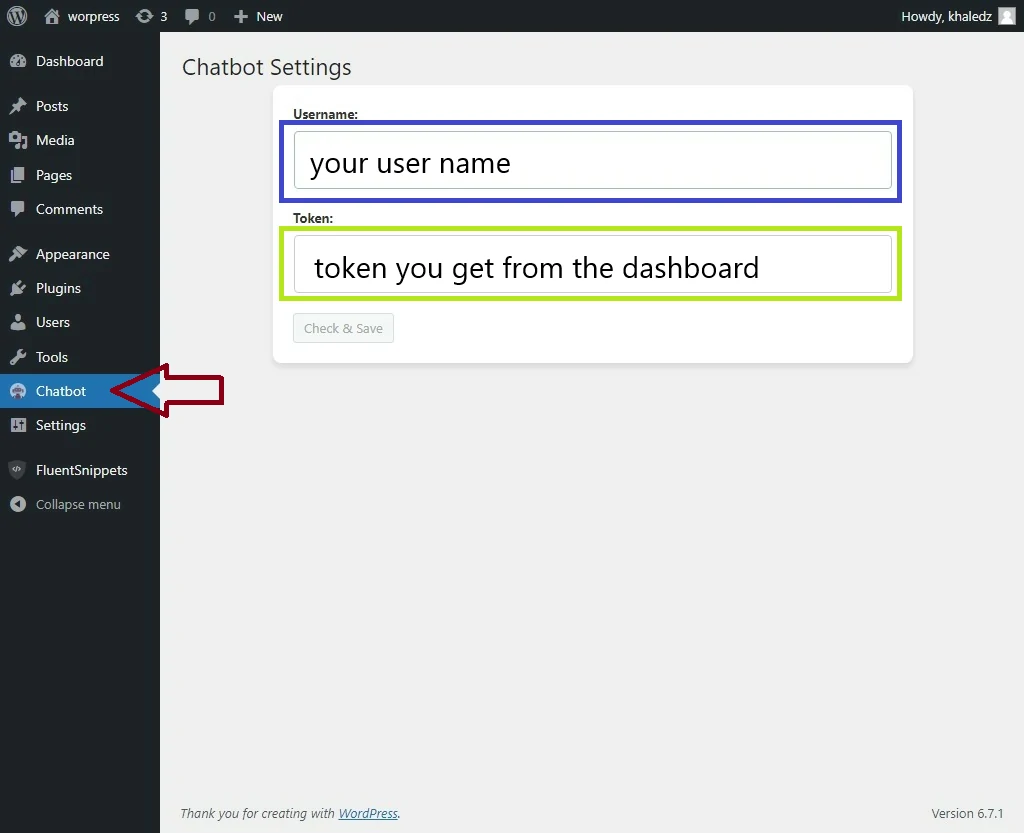
Navigate to the plugin settings page within your dashboard. Enter your login credentials (username and token) and verify them using the validation button.
Step 6: Chatbot Utilization
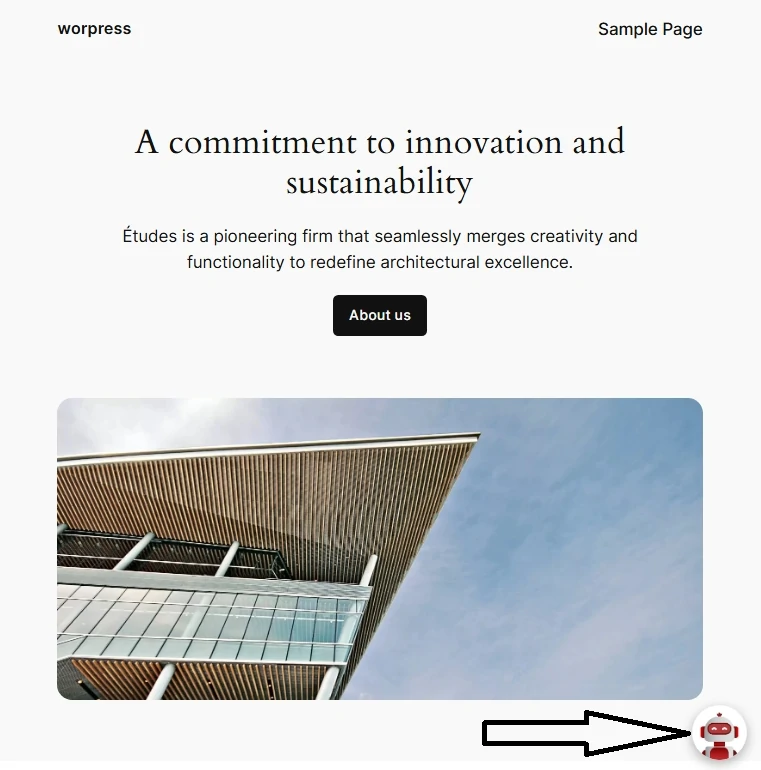
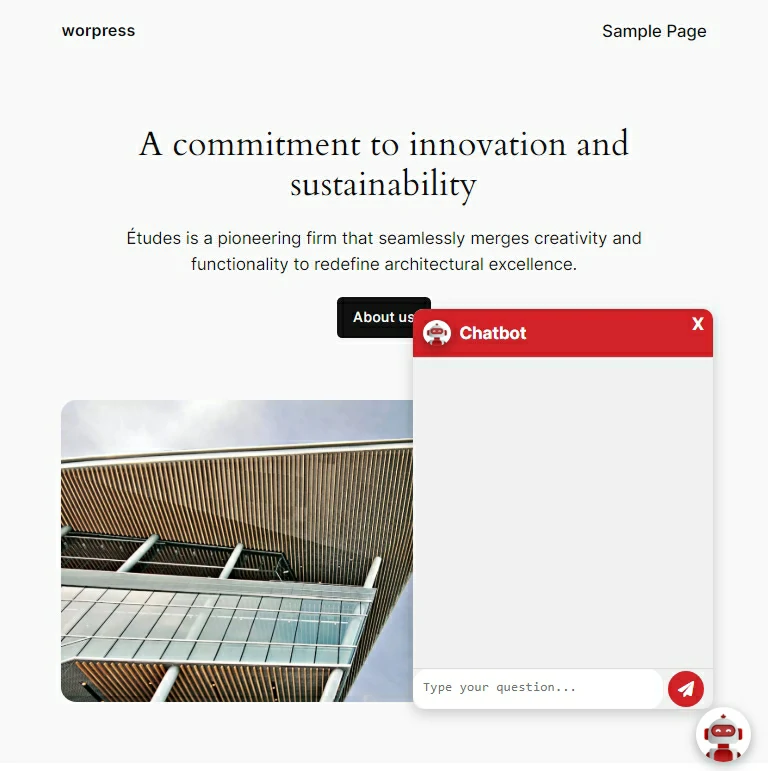
Access the chatbot by clicking its icon on your website’s homepage or other pages. The chatbot is available for all visitors, facilitating seamless interactions.
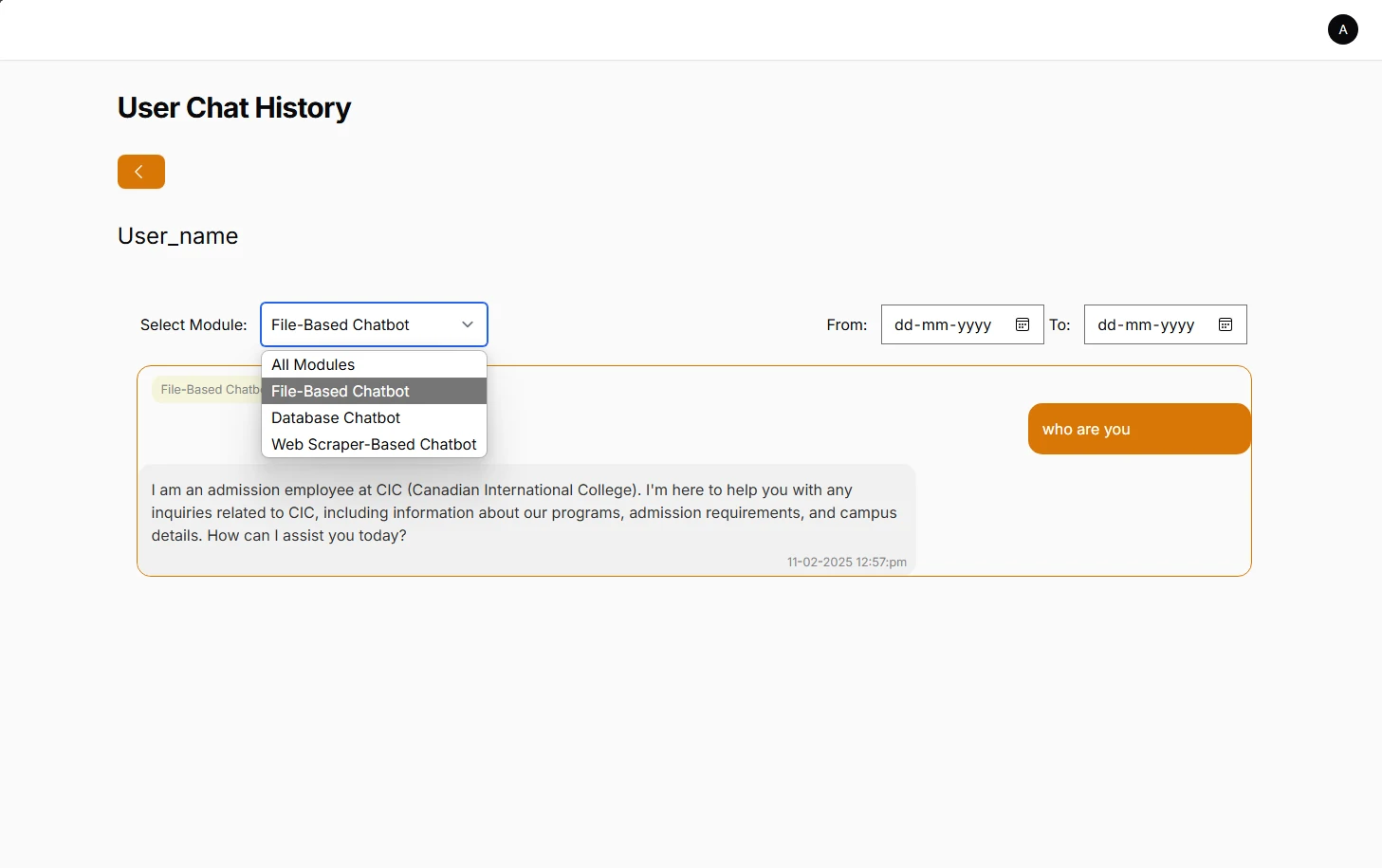
Step 7: Monitoring User Inquiries
Review visitor inquiries through the designated tracking interface. This feature provides a comprehensive chat history across all modules, with filtering options for module-specific and date-based queries.